Editing Carousels: Text, Style, Layout, Download
Every Content Kit generates a set of carousel slides ready for Instagram and LinkedIn. You can edit the text on each slide, reposition it, restyle the whole set with one click, and download single slides or the full set as a zip.
4 min read
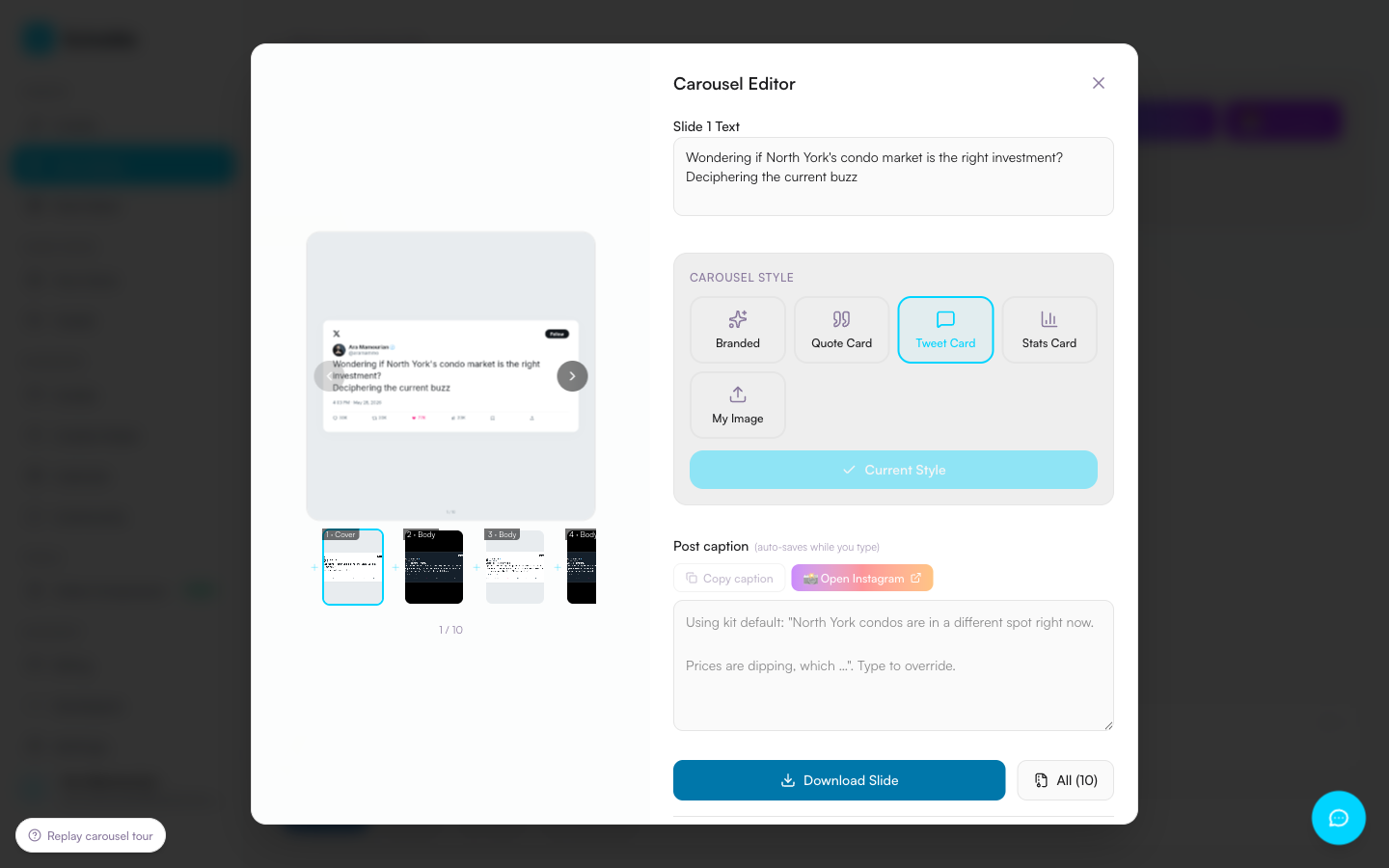
Open the carousel editor
From your Content Kit detail page, find the Carousel tile in the Visual Content section (it shows a stack-of-slides preview with a slide count). Click it to open the Carousel Editor.
Navigate between slides
Use the left and right arrows on the slide preview to move between slides. You can also click any thumbnail in the strip underneath the preview to jump directly to that slide. The current slide number (e.g. 1 / 10) shows below the preview.
Edit slide text
The Slide N Text field on the right (or below the preview on mobile) shows the current slide's text. Click into it and edit. Keep slides short: 1–2 sentences per slide reads best on a phone. Long paragraphs will overflow.
Reposition text by dragging
You'll see the hint “Drag the text on the preview to reposition” under the text field. Click and drag the text box directly on the slide preview to move it anywhere on the canvas. Use this when the default centered placement fights the background image.
Restyle with a design preset
Under Carousel Style, pick one of five presets and EchoMe re-renders every slide in that style in a few seconds:
- Branded: photo background with bold typography. The default look for personal-brand carousels.
- Quote Card: clean serif text on cream. Best for thought-leadership quotes.
- Tweet Card: Twitter-style dark card. Best for hot takes and short hooks.
- Stats Card: big stat on warm white. Best for data-led carousels.
- My Image: pick any image for the cover and last slides — upload your own, reuse a saved photo, grab a still frame from your original video, or use your profile photo. Body slides keep the template look.
The Current Style button below the presets indicates which one is active. Click any other preset to restyle.
Edit the Instagram post caption
The Post caption section at the bottom of the editor pairs with this carousel. Edit it inline; it saves automatically. The copy icon beside the label copies it to your clipboard. To publish, use the posting controls at the bottom of the editor: pick your platforms, then Post now or Schedule.
Download single slide or full set
The Slide download button (bottom of the editor, above the posting controls) exports the currently visible slide as a PNG. All (N) (where N is your carousel's slide count) exports every slide as a zip file, ready to upload to Instagram or LinkedIn in order. You can trim a carousel down to 3 slides or build it up to 20 from the slide strip.
Tips from real use
- Slide 1 is the hook. Most of your audience decides whether to swipe based on the first slide alone. Edit it last, after the rest of the carousel is settled, so you know what you're hooking them into.
- Read the carousel on a phone. The editor preview is desktop-sized. Slides that look fine on a laptop can feel cramped on mobile. Download a slide and open it on your phone before publishing.
- Match the background to the mood. Video Frame works for personal/behind-the-scenes content. Quote Card works for business advice. Tweet Card works for strong opinions and hot takes.
- Caption and carousel should complement, not duplicate. The caption is where you expand on what the slides can't fit: context, story, and the call to action.
Ready to edit a carousel?
Open Your LibraryLog in to view your generated content.